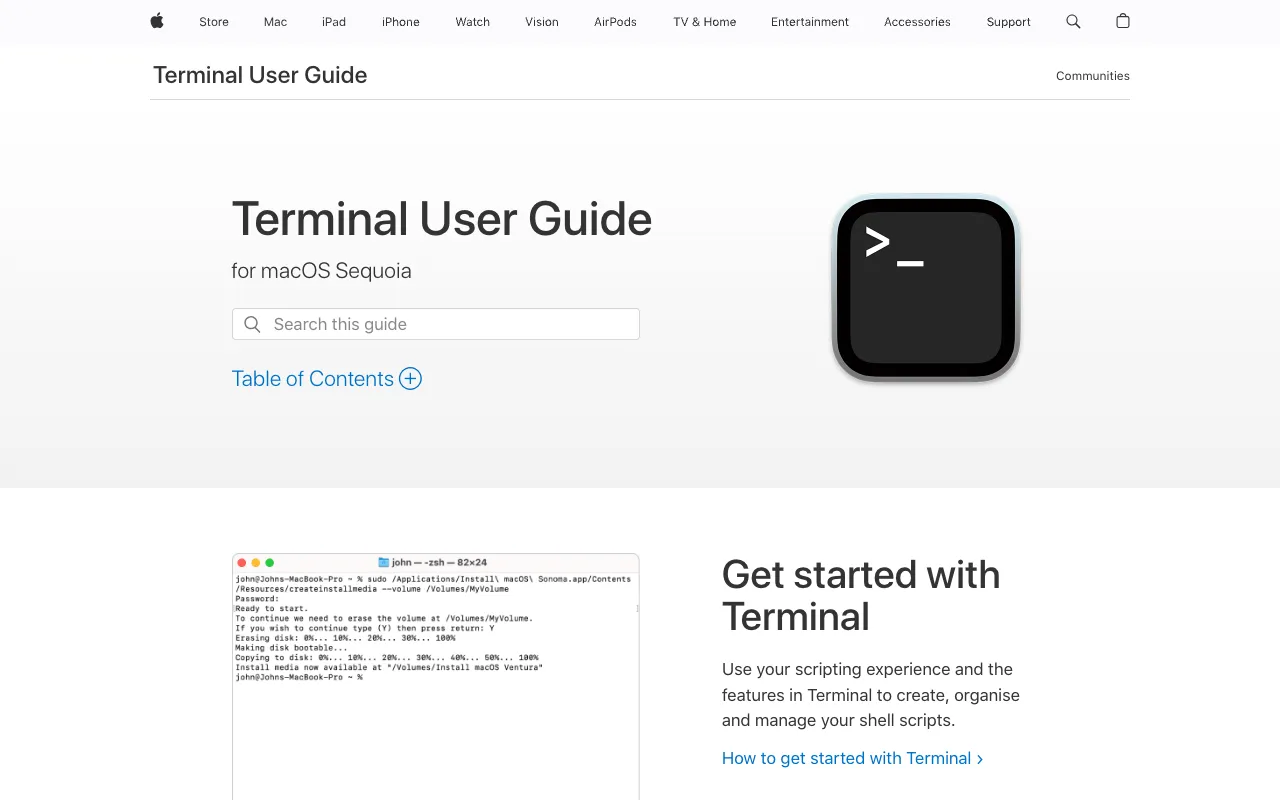
Terminal (macOS/Linux) & PowerShell (Windows) – Essential Command Line Tools
For software engineers, the command line is not just a tool—it's the control center for development. Terminal on macOS/Linux and PowerShell on Windows are the built-in, powerful interfaces that give you direct access to your operating system's core functionality. These free, essential applications enable you to execute commands, automate repetitive tasks, manage files and processes, run scripts, and interact with servers and development tools with unparalleled speed and precision. Mastering these CLIs is a fundamental skill that separates proficient developers from true power users.
What are Terminal and PowerShell?
Terminal (on macOS and Linux distributions) and PowerShell (on Windows) are command-line interface (CLI) applications, also known as shells or consoles. They provide a text-based environment where developers can interact with their computer by typing commands, rather than using a graphical user interface (GUI). Terminal typically runs shells like bash or zsh, which are ideal for Unix-based systems and scripting. PowerShell, Microsoft's modern shell, combines command-line speed with a powerful object-oriented scripting language and deep integration with the Windows ecosystem. Together, they form the foundational toolkit for system administration, software development, automation, and DevOps practices.
Key Features of Terminal & PowerShell
Native System Integration & Scripting
Both tools offer deep, native integration with their respective operating systems. Terminal provides direct access to Unix/Linux core utilities (grep, awk, sed, ssh) and package managers (apt, yum, brew). PowerShell offers cmdlets for managing Windows services, the registry, Active Directory, and more, using a consistent verb-noun syntax. Their powerful scripting capabilities allow you to write reusable scripts (shell scripts, .ps1 files) to automate complex workflows, from build processes to deployment pipelines.
Process & File System Management
Gain complete control over your system's processes and files. You can start, stop, monitor, and kill applications; navigate directory structures instantly; search, copy, move, and manipulate files in bulk; and manage permissions. Operations that are cumbersome in a file explorer become fast and scriptable commands, dramatically improving efficiency for development and system tasks.
Development Tool Orchestration
These CLIs are the primary interface for most modern development tools. You can run version control commands (git), execute package managers (npm, pip, dotnet), launch build tools (make, gradle), start local servers, interact with containers (Docker, Kubernetes), and connect to remote servers via SSH. They centralize your workflow, eliminating context switching between disparate GUI tools.
Who Should Use Terminal & PowerShell?
These tools are indispensable for virtually every technical professional. Software engineers and web developers use them daily for running code, managing dependencies, and using Git. System administrators and DevOps engineers rely on them for server management, automation, and infrastructure scripting. Data scientists and researchers leverage them for data pipeline automation and running analysis scripts. Even IT professionals and power users benefit from their ability to automate repetitive system tasks. If your work involves a computer beyond basic applications, learning the command line is a critical investment.
Terminal & PowerShell Pricing and Free Tier
One of the most significant advantages of Terminal (macOS/Linux) and PowerShell (Windows) is their cost: they are completely free. Both are included as standard, pre-installed components of their respective operating systems. There are no licenses to purchase, subscriptions to manage, or feature-limited free tiers. You have access to the full, powerful capabilities of the shell from the moment you start your computer. For Windows users, the newer Windows Terminal application offers a modern, tabbed, and highly customizable experience and is also available for free from the Microsoft Store.
Common Use Cases
- Automating software build and deployment pipelines with shell scripts
- Managing version control and executing Git commands from the command line
- Bulk file renaming, searching, and organization for project cleanup
- Monitoring system resources and managing running processes for development
- Connecting to and administering remote Linux servers via SSH
Key Benefits
- Dramatically increases development speed and efficiency by avoiding slow GUI interactions
- Enables powerful automation, saving hours on repetitive development and system tasks
- Provides granular control and deep insight into your operating system and applications
- Serves as a universal interface for a vast ecosystem of developer tools and services
- Builds a foundational skill that enhances productivity across all technical roles
Pros & Cons
Pros
- Completely free and pre-installed on all major operating systems
- Unmatched speed and efficiency for experienced users compared to GUI tools
- Extremely powerful for automation, scripting, and batch operations
- Essential for advanced development, DevOps, and system administration work
- Lightweight, stable, and available even on systems with minimal resources
Cons
- Steep learning curve with a syntax that can be intimidating for beginners
- Mistakes can be consequential (e.g., accidentally deleting critical files)
- Lacks the visual feedback and discoverability of graphical user interfaces
- Requires memorization of commands or frequent reference to documentation
Frequently Asked Questions
Is Terminal (macOS/Linux) and PowerShell (Windows) free to use?
Yes, absolutely. Both Terminal (on macOS and Linux) and PowerShell (on Windows) are completely free, built-in applications that come pre-installed with your operating system. There are no costs, licenses, or subscriptions required to use their full feature set.
Are Terminal and PowerShell good tools for software engineers?
Terminal and PowerShell are not just good; they are fundamental and essential tools for software engineers. Mastery of the command line is a core competency. They are used for version control (Git), running development servers, managing packages, executing build scripts, automating tasks, and interacting with nearly every other development tool in the modern stack. No professional development workflow is complete without them.
What's the difference between Terminal and PowerShell?
Terminal is the application that provides access to Unix-style shells (like bash or zsh) on macOS and Linux. PowerShell is both a shell and a scripting language built for Windows, with a focus on object-oriented piping and deep Windows system management. While Terminal/Unix shells use text streams, PowerShell passes rich .NET objects between commands. For cross-platform consistency, many developers on Windows also use the Windows Subsystem for Linux (WSL) to run a Linux shell within Windows.
How do I start learning the command line as a beginner?
Start with basic navigation: learn commands like `pwd` (print working directory), `ls` (list files), and `cd` (change directory). Practice on your own machine in a safe directory. Use online tutorials, free courses, and the built-in `man` (manual) pages. Focus on automating one small, repetitive task you do often. The key is consistent, hands-on practice in the context of your actual work.
Conclusion
Terminal for macOS/Linux and PowerShell for Windows are more than just applications; they are gateways to unlocking the full potential of your computer for development. While the initial learning curve is real, the long-term payoff in speed, automation capability, and professional skill is immense. As free, universally available tools, they represent one of the highest-return investments a software engineer can make. Whether you're writing a simple script to organize files or orchestrating a complex cloud deployment, proficiency with your system's command-line interface is a non-negotiable pillar of modern technical expertise.